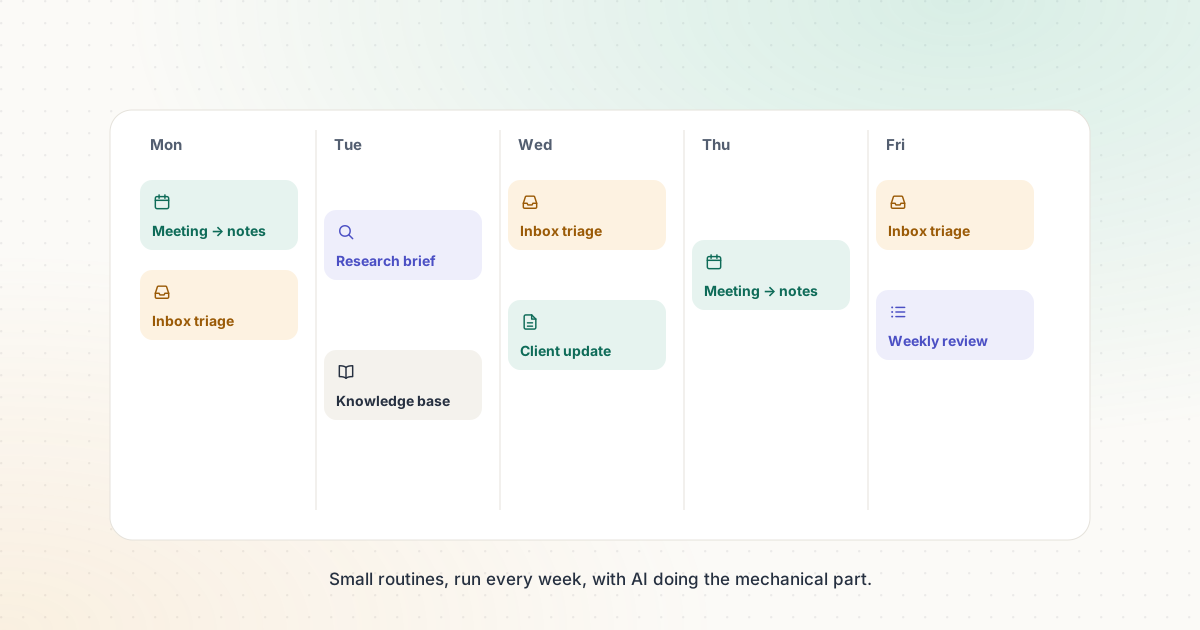
Most people use AI the same way they use a search box: occasionally, for a one-off question. The real productivity gains come from workflows — the same small routine, run every day or every week, with the AI doing the mechanical part. Here are six that are quick to set up and easy to keep.
Each workflow lists the setup time, tool options and the one thing that most often goes wrong.
1. Meeting → notes → follow-up
Setup time: 20 minutes · Tools: Otter.ai, Notion AI or the transcription built into your meeting platform
- Connect a meeting assistant to your calendar so it joins scheduled calls.
- After each meeting, ask for three outputs: decisions made, action items with owners and dates, and open questions.
- Paste the action items into your task manager and send the follow-up email the same day.
Otter’s free Basic plan includes 300 minutes per month with a 30-minute cap per conversation, which is enough to test the routine on short calls.
What goes wrong: the summary assigns a task to the wrong person or invents a deadline. Read the action list before sending it, and always tell participants when a meeting is recorded.
2. Inbox triage
Setup time: 30 minutes · Tools: a general assistant, or Gemini inside Gmail on supported Google AI plans
Once or twice a day, take the emails that need a reply and ask the AI to sort them into: reply today, reply this week, delegate and archive, with a one-line reason for each. Then draft replies for the “today” group using short instructions: “Decline politely, offer next Tuesday instead.”
Google lists Gemini in Gmail on its Google AI Plus plan and above, not on the free plan. On other setups, paste in the text of the emails you are comfortable sharing — not confidential or personal data.
What goes wrong: drafts that sound unlike you. Save a short description of your writing style and two example emails, and include them every time (see workflow 4).
3. Research brief with sources
Setup time: 15 minutes · Tools: Perplexity, Deep Research in Gemini, or Research in Claude on paid plans
When you need to understand a topic quickly — a new market, a regulation, a supplier — ask for a structured brief:
Give me a one-page brief on [topic] for [purpose]. Use official or primary sources where possible. Structure: key facts, open questions, risks, and a list of sources with links. Mark anything you are unsure about.
Then open the three most important sources and confirm the key facts yourself.
What goes wrong: treating the summary as the source. A research tool is a fast way to find sources, not a replacement for reading them.
4. Reusable instructions for repeated tasks
Setup time: 30 minutes per task · Tools: Projects in ChatGPT or Claude, custom GPTs on ChatGPT’s paid plans, or Gems in Gemini
If you explain the same context to an AI every week — your business, your audience, your tone, the format you want — save it once:
- Write the instructions: who you are, who the output is for, the format, the rules.
- Add reference files: a style guide, a template, an example of a great result.
- Name it after the task: “Weekly client update,” “Product description,” “Job post.”
According to the vendors’ plan pages, ChatGPT offers Projects on every plan, Claude’s free plan allows up to five Projects, and Google lists Gems on Gemini’s free plan.
Our free AI Prompt Generator helps you write these instructions in a clear structure.
What goes wrong: instructions drift out of date. Review saved instructions once a month.
5. Weekly planning review
Setup time: 10 minutes · Tools: any general assistant
Every Friday, paste in a plain list of what you finished, what slipped and what’s coming next week. Ask the AI to:
- group the work into three priorities for next week,
- flag anything that has slipped twice,
- suggest one task to delegate or drop.
You make the decisions; the AI just helps you see the pattern. Our productivity templates include a ready-made version of this prompt.
What goes wrong: over-planning. Keep the output to one screen.
6. A searchable team knowledge base
Setup time: a few hours, then ongoing · Tools: Notion AI or another workspace with AI search
When a team keeps answering the same internal questions — “Where’s the logo?”, “How do we process a refund?” — a written knowledge base plus AI search saves time for everyone.
- Start with the ten questions you hear most often and write a short page for each.
- Use consistent page titles and keep one page per topic.
- Let the AI answer questions from those pages, with links back to the source page.
Notion’s pricing page lists Enterprise Search and Notion Agent on its Business plan; on the Free and Plus plans, these features are a limited trial.
What goes wrong: outdated pages produce outdated answers. Give every page an owner and a review date.
Make it stick
Pick one workflow, run it for two weeks and note the time it saves. If it works, add the next one. The goal isn’t to use more AI; it’s to spend less time on work that doesn’t need your full attention. For bigger, multi-app routines, see our admin automation workflow.
Sources and further reading
We link to official documentation and primary sources. Product details change — check the source before relying on a specific limit or price.
- Otter.ai pricing otter.ai
- Notion pricing notion.com
- Gemini subscriptions gemini.google
- ChatGPT pricing chatgpt.com
- Claude pricing claude.com